Sign the BAA
We sent the agreement to your email through DocuSign. Signing takes two minutes.
Sent by DocuSign to on . Not in your inbox? Ask us to resend.
What you're signing
The Business Associate Agreement. It allows Kaigo to receive and review your pharmacy billing records. That is all it covers.
Or email it: lukas@kaigohealth.ai
Four documents
Any format works. If you only have part of it, upload what you have and we start with that.
Pharmacy statements, 12 months Must
Where to find them
- In your accounts-payable files, or in the pharmacy portal under Statements.
- We need the detail pages, not just the summary page.
Census export, 12 months Must
PointClickCare guide
- Reports → Detailed Census (Admin, ADT/Profiles).
- Period Yearly, name blank, all sections.
- Export CSV.
Resident insurance list Must
PointClickCare guide
- Reports → search "insurance" → Resident Insurance Setup.
- Payer Type All. "Effective as of" = full 12 months, not today.
- Export CSV or PDF.
Pharmacy services agreement and rate schedule Must
What to include
- The signed agreement.
- The rate schedule or price list.
- Any amendments.
- You have 30 days to dispute a pharmacy invoice. After that the charge stands.
- Payers pay back overcharges for 12 months at most. Every month waited is a month lost.
- Health plans accept disputes for 90 days to 18 months, depending on the plan.
- Claims under a contract expire after three to four years.
Optional but highly recommended
Not needed to finish, but both help us find more savings for you. If you have them, or can get them, please upload them here.
Managed-care contracts Recommended
What to include
- The rate exhibits matter most.
- A summary is fine to start.
Vendor invoices, 6 months Recommended
What to include
- Wholesaler, food, supplies, equipment, staffing agency.
- An export from your accounts-payable system covers all of it.
PointClickCare access
Two read-only logins to PointClickCare let us pull census and billing reports ourselves instead of asking you every month. It works the same way as adding a new back-office employee, about 5 minutes each. If you cannot create users yourself, hand this step to the person who can.
| Name | Login | |
|---|---|---|
| Kazuki Shin | kazuki | kazuki@kaigohealth.ai |
| Lukas Klaiber | lukas | lukas@kaigohealth.ai |
Step 1 · Open Manage Users
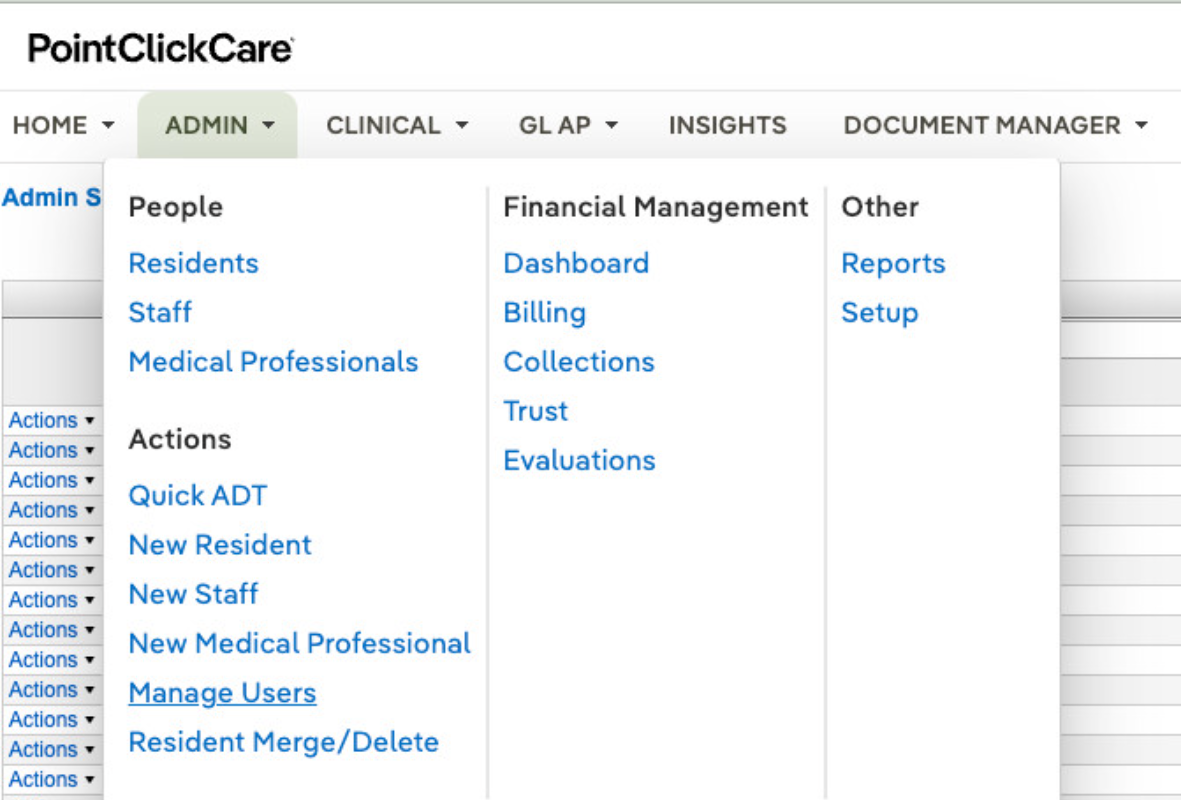
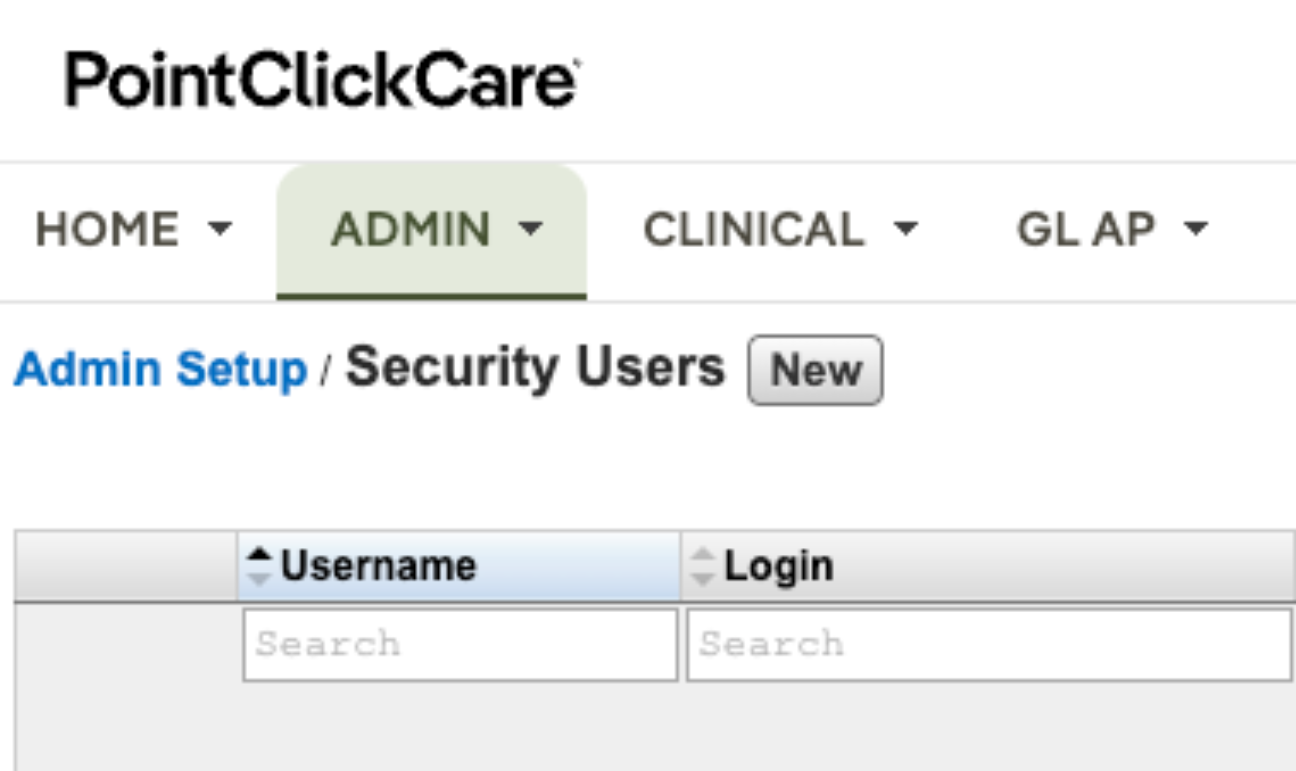
In PointClickCare go to Admin → Manage Users (under Actions). On the Security Users page click New.
Step 2 · Fill in the user
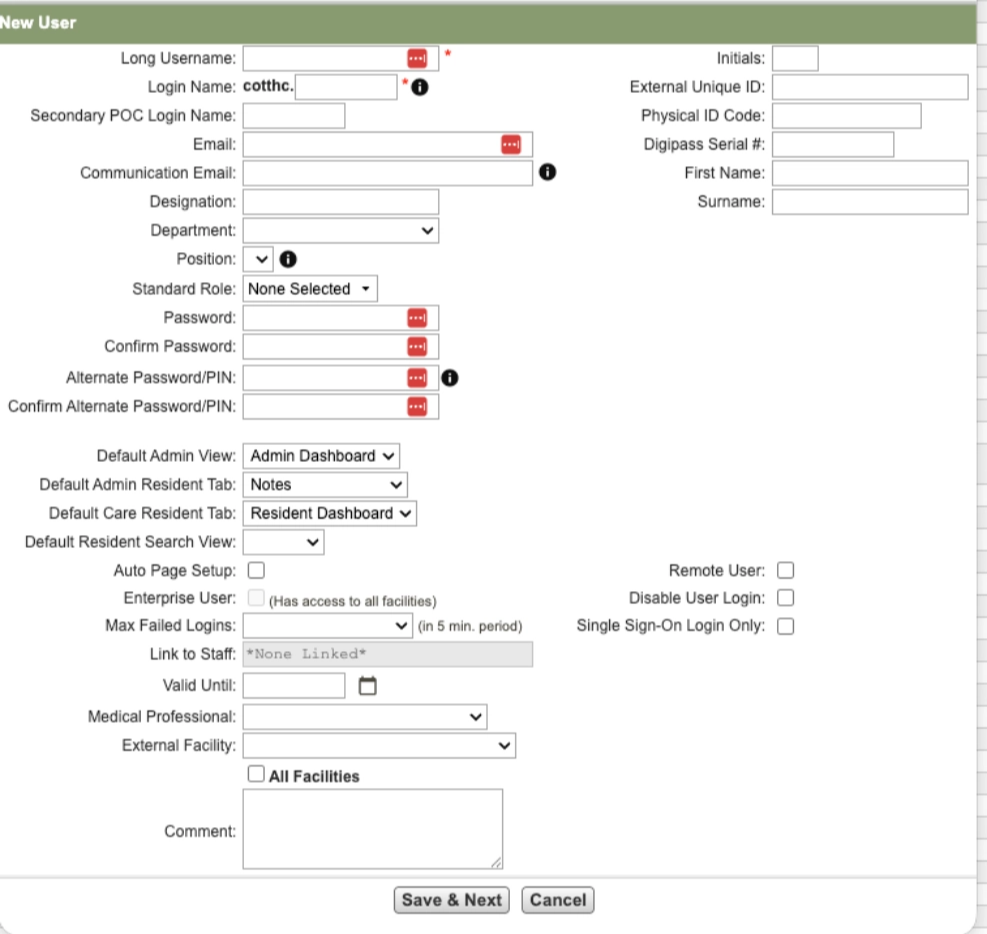
One user per person in the table. Long Username = their name. Login Name = their login (your facility prefix is added automatically). Email = theirs. Department and Position: whatever is closest, Administration or Business Office is fine. Password: any temporary one, it changes on first login. Tick Remote User on the right. Everything else can stay blank.
Step 3 · Set the roles
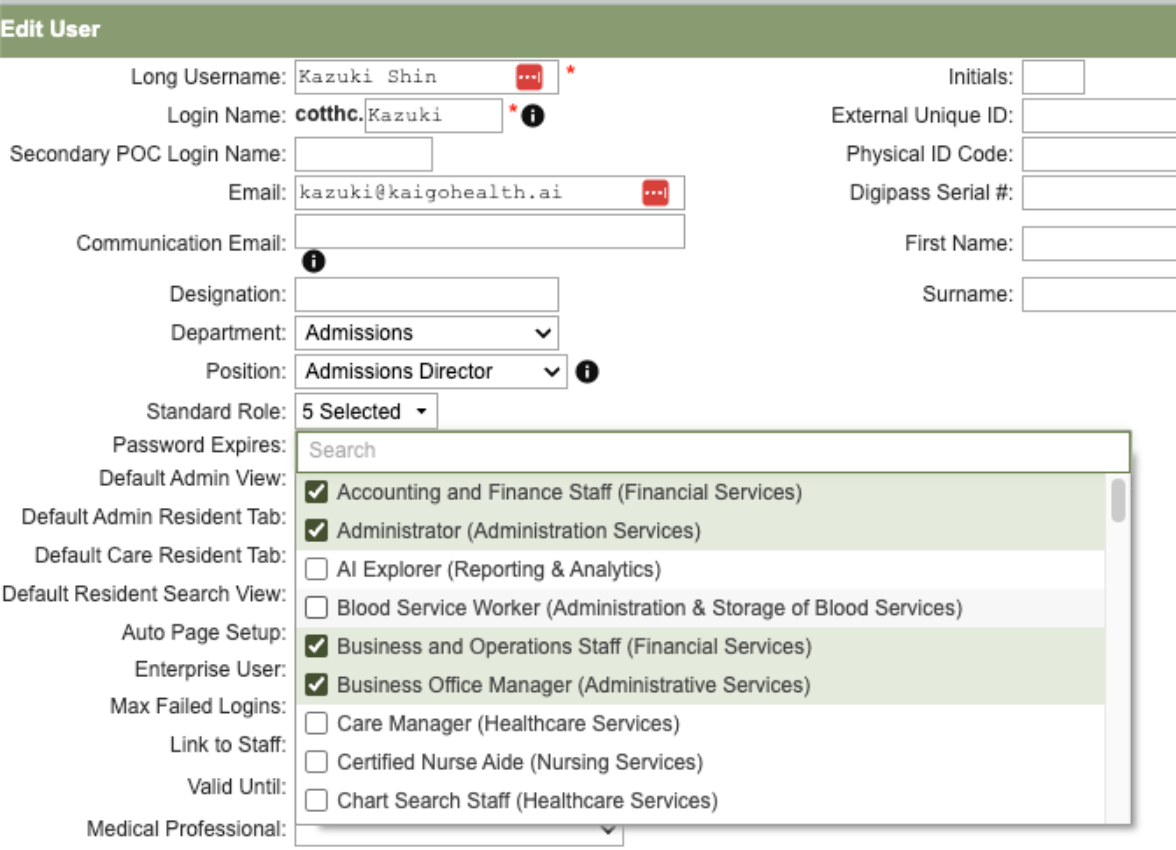
In Standard Role, tick the same roles your Business Office Manager has, plus Administrator. Do not build or clone a role. If you prefer to pick from the list: Accounting and Finance Staff, Administrator, Business and Operations Staff, Business Office Manager. Then Save & Next and accept the defaults.
Step 4 · Send us the temporary passwords
Type them here, not in an email or a text. We see them only on our side, they are deleted after 14 days, and each person changes theirs at first login.
We create the logins with you at your desk or on a screen-share. Nothing to prepare.
I don't see "Manage Users"
Only users who can create Security Users see it. Forward this step to whoever adds staff to PCC.
Do I have to change one of my role templates?
No. New user, tick your BOM's roles plus Administrator. Never edit or clone an existing template; that changes everyone on it.
Kaigo sees clinical data but no census or billing reports
Default clinical roles hide the Admin and billing module. Add the BOM's roles: Census, A/R, Authorizations, Resident Insurance, Collections.
The reports run but come back empty
On the user: set Care Provider Access Only to N in both Admin and Clinical, and Group Access Only (Collections) to N. This is the fix that took one facility a week to find and one minute to apply.
"Client access has been restricted", zero residents
Same two settings as above, and check the user is attached to your live facility. Compare against a staff account with the User Access report.
Login works inside the building only
Admin → Setup → Security Users → Edit the user → tick Remote User → Save. Minutes.
Corporate or IT has to approve
Send them this step with the signed BAA attached and tell us the turnaround. Meanwhile the two exports in step 2 are enough for us to start.
A report export came back blank
Rerun it and wait until it says Completed before downloading. Still blank: tell us, we pull it with the read-only login.
How do I remove access later?
Admin → Manage Users → deactivate the user. One click; everything they did stays in your audit log under their name.
Sign the services agreement
The master services agreement and order form we discussed. Sent to your email through DocuSign.
Questions on any clause: reply to the email it came with, or write to us.
What's next
- Once everything is in, we review your pharmacy statements line by line.
- Within 2 days you receive our first findings. Every figure comes with the statement line it was found on.
- Where the pharmacy owes you money, we prepare the dispute and you approve it before anything goes out.
- After that, you send us one statement each month and get one report back. No email chains.
Kaigo Health
lukas@kaigohealth.ai